
Once a workflow has been created and documents have been processed, the next step is to review and validate the extracted data. This section is about:Documentation Index
Fetch the complete documentation index at: https://docs.anyformat.ai/llms.txt
Use this file to discover all available pages before exploring further.
- Reviewing results
- Validating data
- Correcting outputs
- Preparing data for export or use
Important distinction
Before going further, it’s important to clarify a common source of confusion.Refining a workflow
During creation - improves how data is extracted in the future.
Validating results
After processing - confirms whether extracted data is correct for specific documents.
anyformat will learn from validation and corrections over time to improve future results.
Table view
Reviewing data at scale
The table view lets you review all extracted data across documents. You’ll see:- One row per document
- One column per field in the schema
- Metadata such as creation date, processed date, and validator
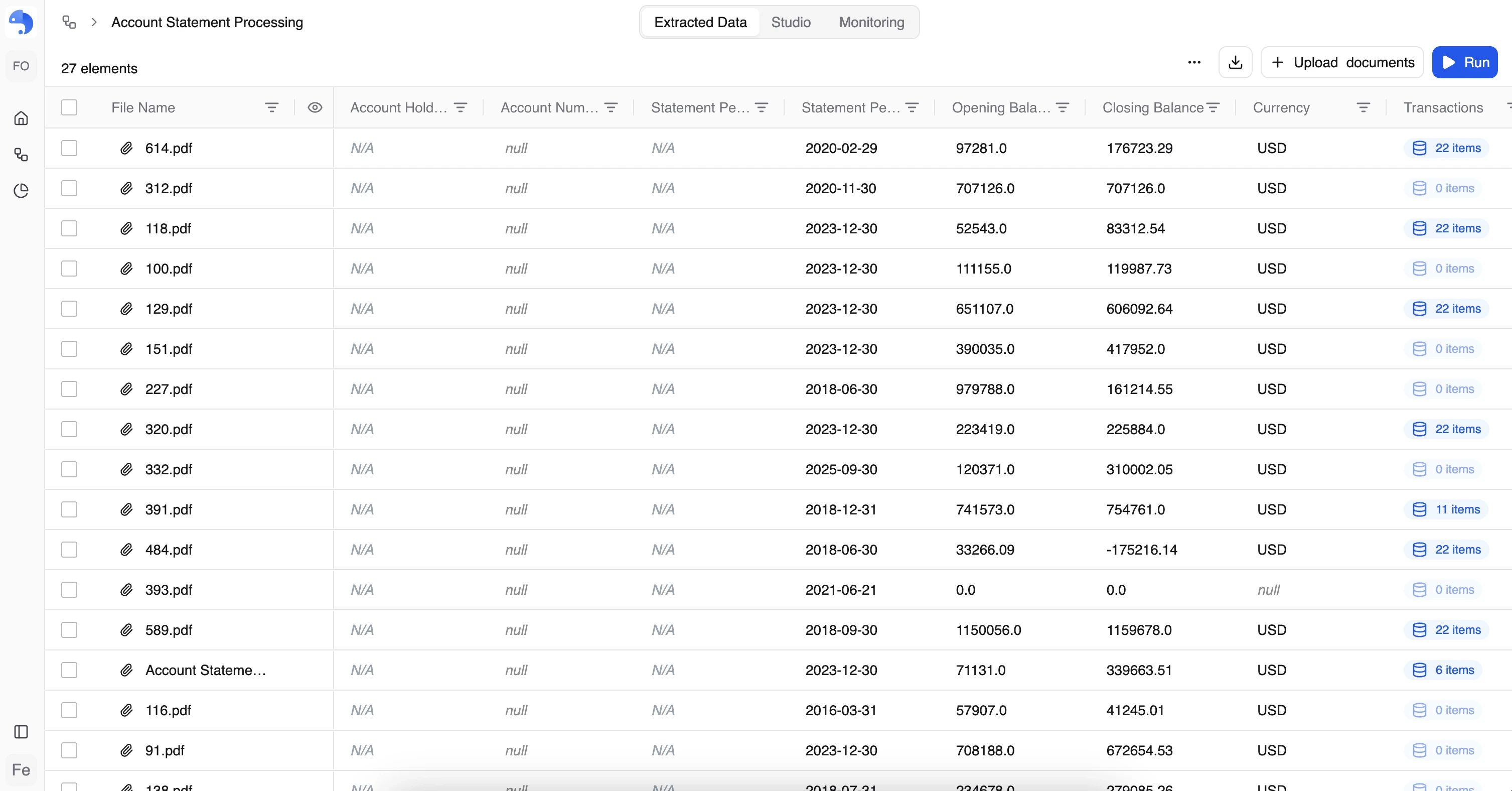
Table actions
From the table view, you can:- Run the workflow on unprocessed documents
- Download processed results (CSV, Excel, JSON)
- Delete selected documents
- Open a document in page view
- Download results per document (row-level export)
Working with columns
In the table view you can:- Reorder columns
- Resize columns
- Sort by any column
- Filter by any column
- Search by document or field value
Objects in table view
Fields of type Object (Subtable) appear as grouped items. To review them:- Expand the object
- View all items in a dedicated table
Page view
Reviewing one document at a time
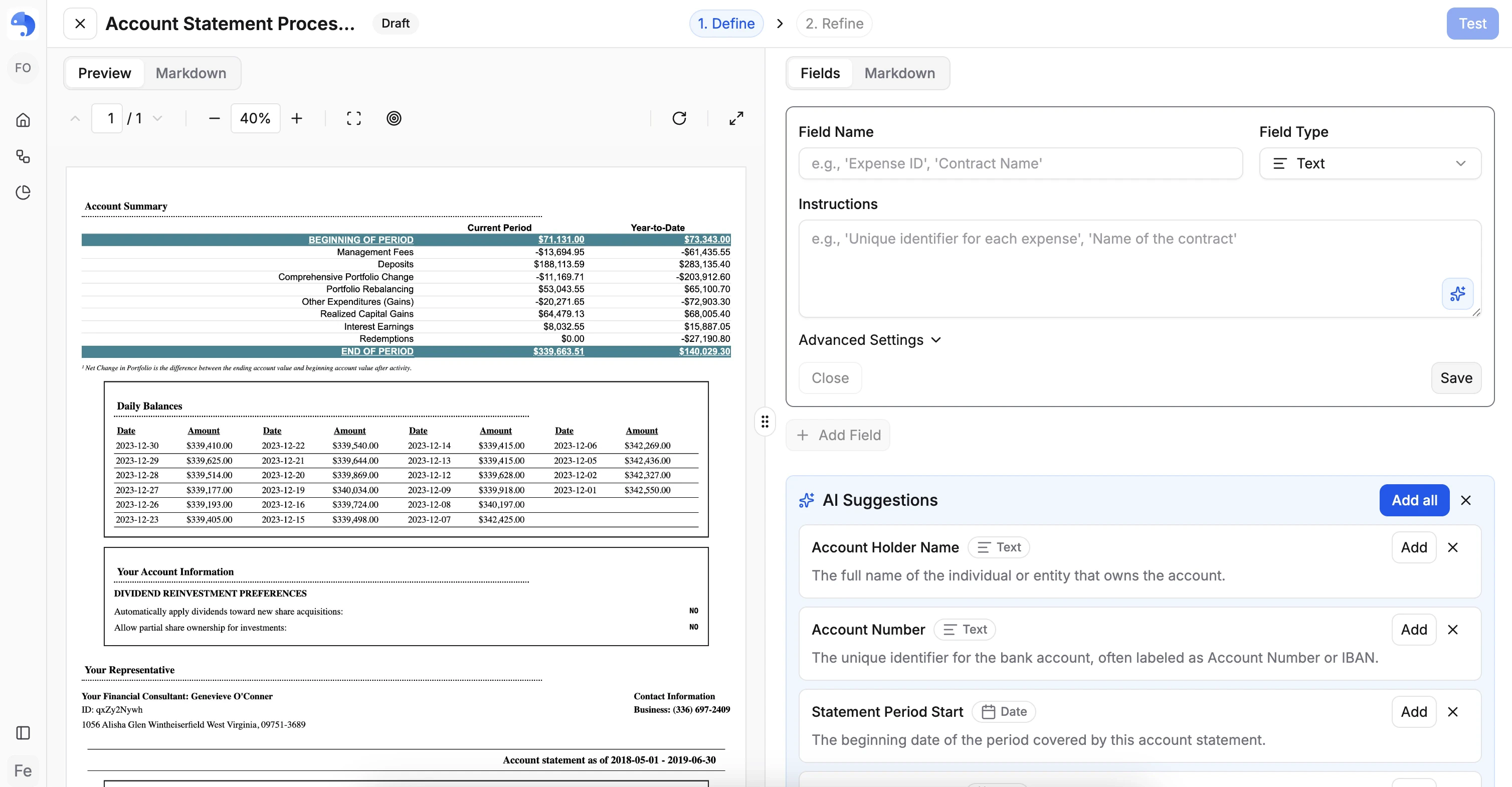
The page view is designed for detailed, per-document validation. The layout is similar to the workflow creation view:- Document viewer on one side
- Extracted fields on the other
Here, you are validating final results, not improving prompts.
Visual grounding and evidence
Each extracted value is visually linked to the document:- A single color highlights where the value appears in the document
- Clicking a field highlights it in the document — and clicking an area in the document highlights the corresponding field
Confidence indicators
Each field includes a confidence score.- Shown as a percentage
- Explained on hover
- Low confidence values require human review
Validating results
You can validate:- Individual fields
- Entire documents
- Multiple documents at once
- Thumbs up - correct
- Thumbs down - incorrect
Keyboard shortcuts
To speed up review:| Shortcut | Action |
|---|---|
Shift + ← / → | Navigate between documents |
Ctrl + Enter | Validate the current document |
Shift + Enter | Validate and move to the next document |
Correcting outputs
When a value is incorrect:- You can correct it manually
- The corrected value is saved as the validated result
- You can validate individual items
- Or validate the entire object
- Add new items
- Filter to show only items visible on the page
What’s next?
Analytics & Quality
Monitor and improve quality over time
Outputs
Learn about export formats and using data externally