
Adding documents
Documents can be added to a workflow:- Manually - Upload through the interface
- Via API - Send documents programmatically
- Cloud storage - Connect to Google Drive or Microsoft SharePoint
Document statuses
Each document has a status that reflects its state:| Status | Description |
|---|---|
| Not started | The workflow has not been run on this document yet |
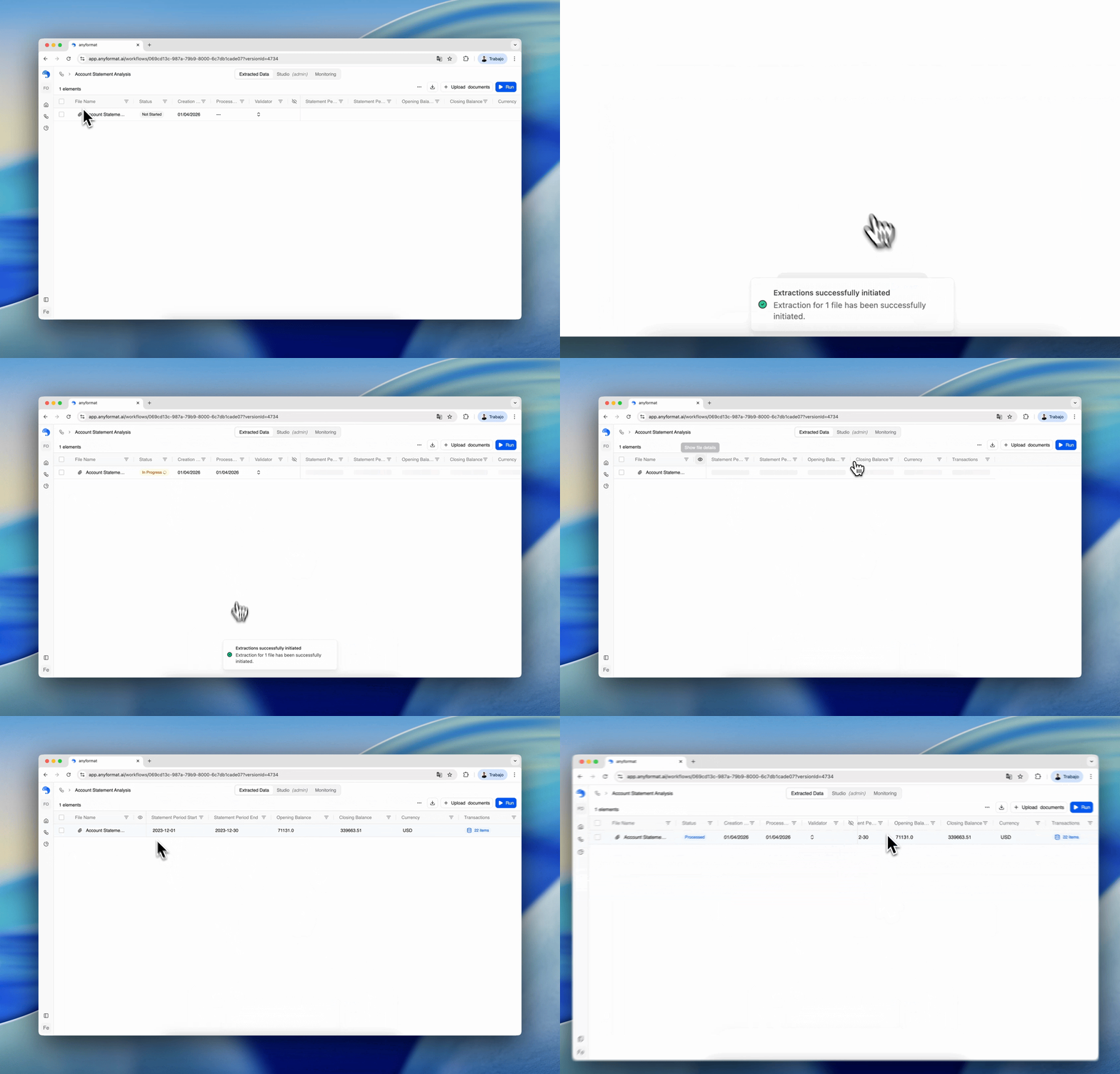
| In progress | anyformat is currently processing the document |
| Processed | The document has been processed, but not yet reviewed |
| Validated | All extracted data has been reviewed and validated (shown in green) |
| Error | There was an error during processing (not counted toward usage) |
Running a workflow
To run a workflow:- Select documents that haven’t been processed
- Click Run to start processing
- Wait for processing to complete
- Document size
- Number of pages
- Current system load
Viewing results
Once processed, you can view results in:Table view
Review all extracted data across documents at once. One row per document, one column per field.
Page view
Review one document at a time with visual grounding linking fields to the source.
Exporting results
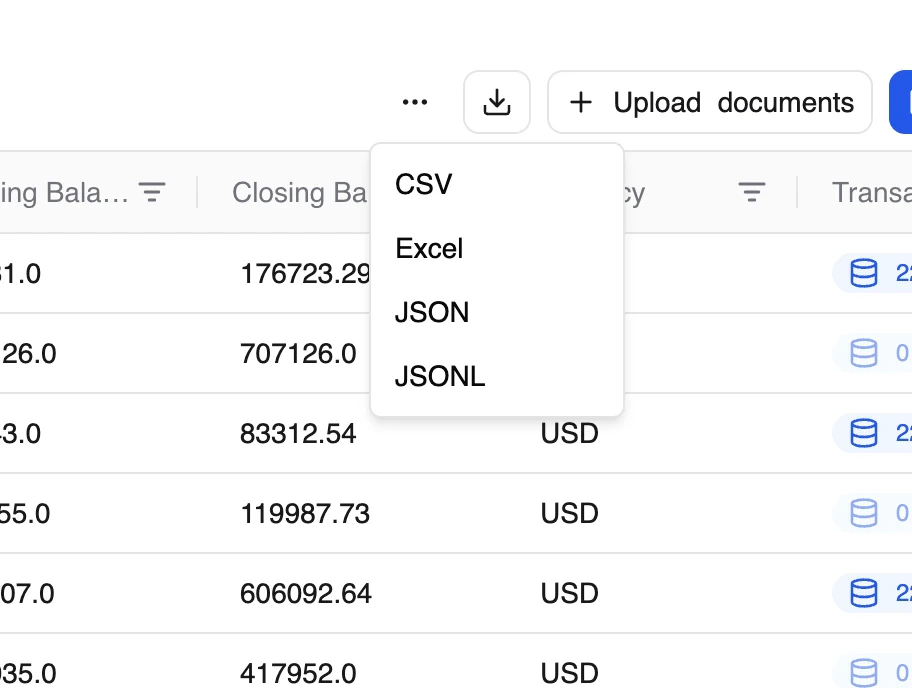
From the workflow view, you can download processed results in:- CSV - For spreadsheets and data analysis
- Excel - For business users
- JSON - For integrations and automation
- All documents at once
- Selected documents
- Individual documents (row-level export)
What’s next?
Validation & Review
Learn how to validate and correct extracted data
Analytics & Quality
Monitor and improve quality