

- Reviewing results
- Verifying data
- Correcting outputs
- Preparing data for export or use
Two things that sound alike
These two are easy to confuse:Refining a workflow
You do this while building. It improves extraction going forward, on every future document.
Verifying results
You do this after processing. It confirms whether the data from a specific document is correct.
Table view
Reviewing data at scale
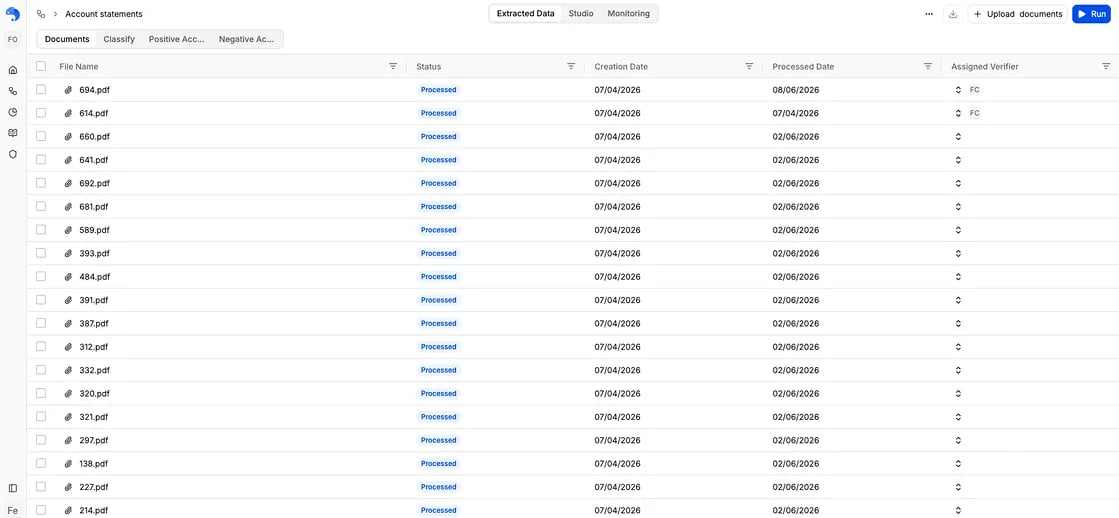
The table view shows all extracted data across documents. The first tab shows your documents:- One row per document
- One column per field in the schema
- Metadata such as creation date, processed date, and who verified it
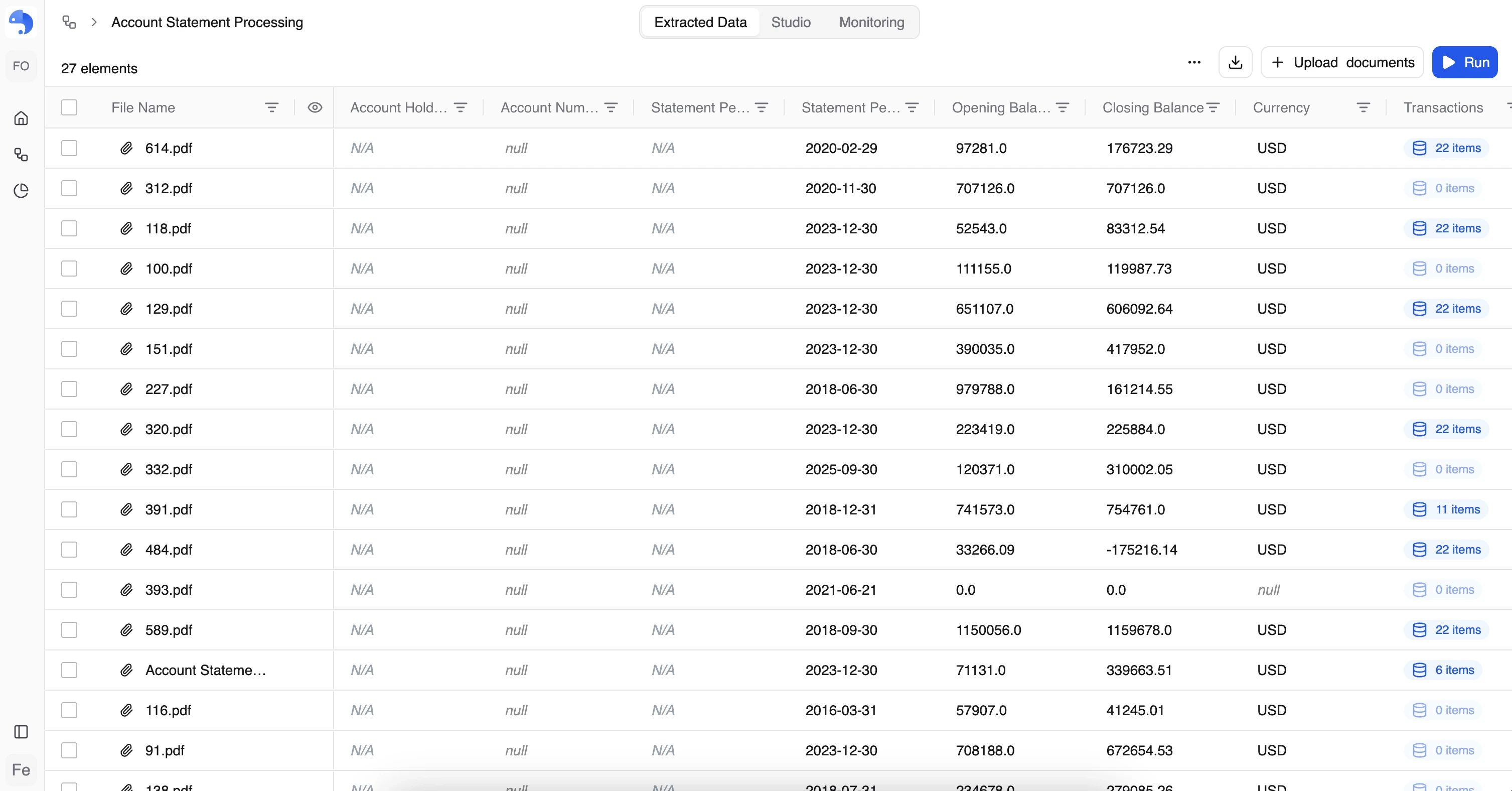
Table actions
From the table view:- Run the workflow on unprocessed documents
- Download processed results as CSV, Excel, or JSON
- Delete selected documents
- Open a document in the document view by clicking its filename
- Download results per document, a row-level export
Working with columns
In the table view:- Reorder columns
- Resize columns
- Sort by any column
- Filter by any column
- Search by document or field value
Objects in table view
A field of type Object (Subtable), such as invoice line items, appears as its own table. Expand the object to see every row laid out together, and review the repeated data on its own.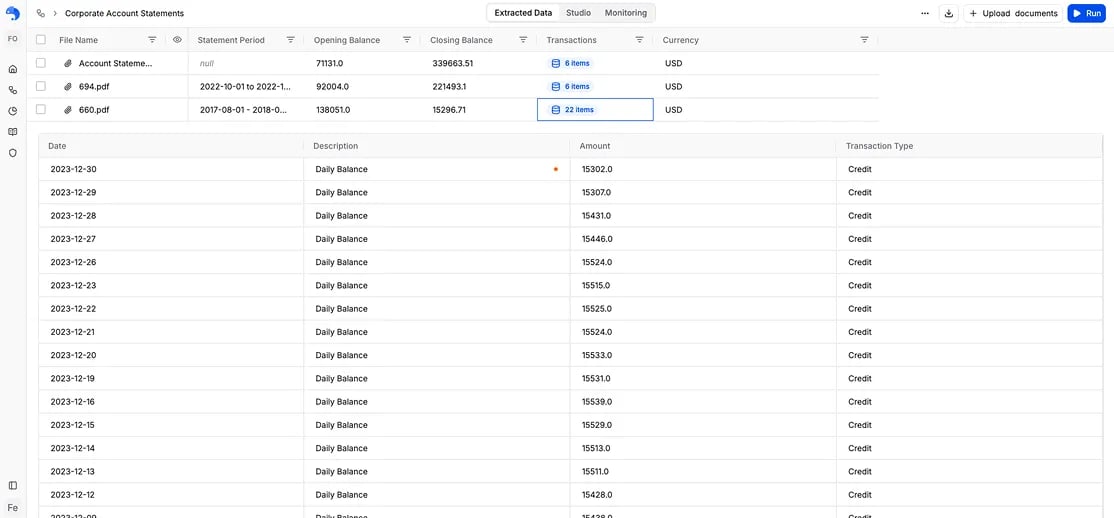
Document view
Reviewing one document at a time
To open a single document, click its filename in the table. This opens the document view, designed for detailed, per-document review. The layout is similar to the workflow creation view:- Document viewer on one side
- Extracted fields on the other
Here, you are verifying final results, not changing the workflow.
Visual grounding and evidence
Each extracted value is visually linked to the document:- A single color highlights where the value appears in the document
- Clicking a field highlights it in the document, and clicking an area in the document highlights the matching field
Confidence indicators
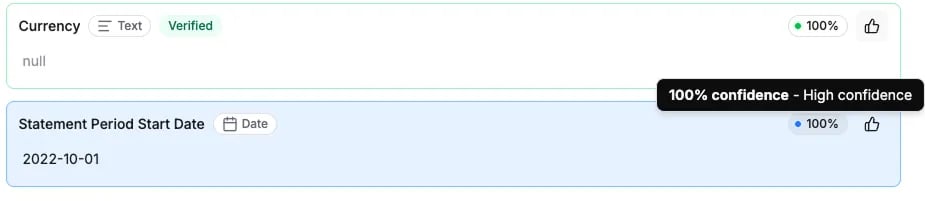
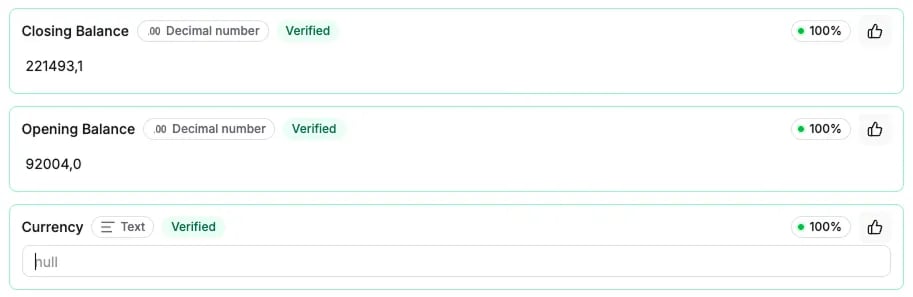
Each field shows a confidence score: a signal of how sure anyformat is about that value.- Shown as a percentage with a colored dot
- Explained on hover
- Low-confidence values are the ones worth checking first
Verifying results
When a value is correct, mark it verified with the thumbs-up button. Verify:- Individual fields
- Entire documents
- Multiple documents at once
Keyboard shortcuts
To speed up review:Correcting outputs
When a value is incorrect, edit it. anyformat saves the corrected value as the verified result, so your export carries the fix. For an Object (Subtable) field, verify individual rows or the whole object. Add new rows, or filter to show only the rows on the current page.What’s next?
Analytics & Quality
Monitor and improve quality over time
Outputs
Export formats, and using data outside anyformat