> ## Documentation Index
> Fetch the complete documentation index at: https://docs.anyformat.ai/llms.txt
> Use this file to discover all available pages before exploring further.
# Versions
> Workflow versioning — how anyformat tracks changes so you can always go back.
anyformat automatically tracks changes to your workflows through versioning.
***
## How versioning works
Every time you edit a workflow, a new version is created automatically. This means:
* Your previous configurations are preserved
* You can see the history of changes
* Each version captures the complete workflow state
### What creates a new version?
* Adding, removing, or modifying fields
* Changing the schema
* Updating workflow configuration
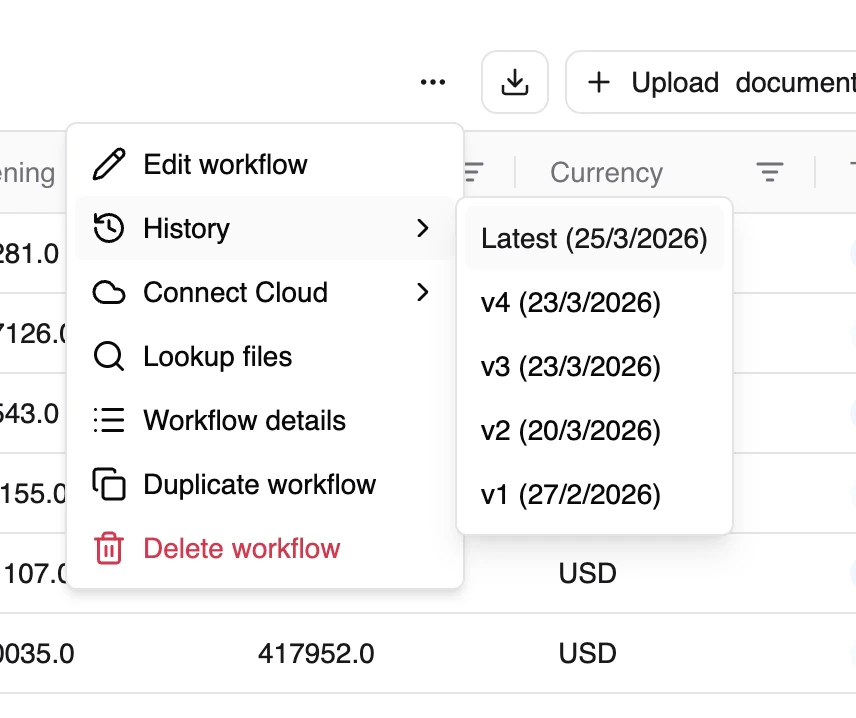
### Version history
Versions form a chain, allowing you to:
* Track how your workflow evolved
* Understand what changed between versions
* Maintain a complete audit trail
 ***
## Why this matters
Versioning is your safety net. For example: say you edit an invoice workflow so the "total" field excludes VAT — and the next batch of results suddenly looks wrong. Because the previous version was saved automatically, you can look back at the history and return to the version that was working, instead of trying to rebuild it from memory.
Editing a workflow only affects **future** runs. Documents you've already processed keep the results from the version they were run on — changing the workflow doesn't silently rewrite past data.
***
## What's next?
Learn the full workflow creation process
Monitor and improve quality
***
## Why this matters
Versioning is your safety net. For example: say you edit an invoice workflow so the "total" field excludes VAT — and the next batch of results suddenly looks wrong. Because the previous version was saved automatically, you can look back at the history and return to the version that was working, instead of trying to rebuild it from memory.
Editing a workflow only affects **future** runs. Documents you've already processed keep the results from the version they were run on — changing the workflow doesn't silently rewrite past data.
***
## What's next?
Learn the full workflow creation process
Monitor and improve quality