> ## Documentation Index
> Fetch the complete documentation index at: https://docs.anyformat.ai/llms.txt
> Use this file to discover all available pages before exploring further.
# Versions & Templates
> Workflow versioning and document templates to get started faster
## Workflow versions
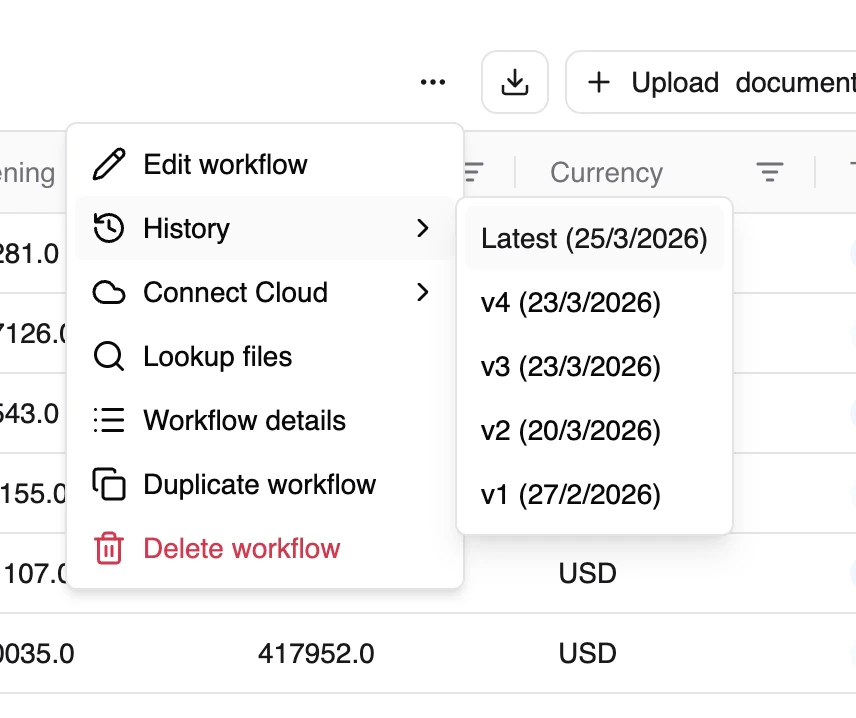
anyformat automatically tracks changes to your workflows through versioning.
### How versioning works
Every time you edit a workflow, a new version is created automatically. This means:
* Your previous configurations are preserved
* You can see the history of changes
* Each version captures the complete workflow state
### What creates a new version?
* Adding, removing, or modifying fields
* Changing the schema
* Updating workflow configuration
### Version history
Versions form a chain, allowing you to:
* Track how your workflow evolved
* Understand what changed between versions
* Maintain a complete audit trail
 ### Why this matters
Versioning is your safety net. For example: say you edit an invoice workflow so the "total" field excludes VAT — and the next batch of results suddenly looks wrong. Because the previous version was saved automatically, you can look back at the history and return to the version that was working, instead of trying to rebuild it from memory.
Editing a workflow only affects **future** runs. Documents you've already processed keep the results from the version they were run on — changing the workflow doesn't silently rewrite past data.
***
## Document templates
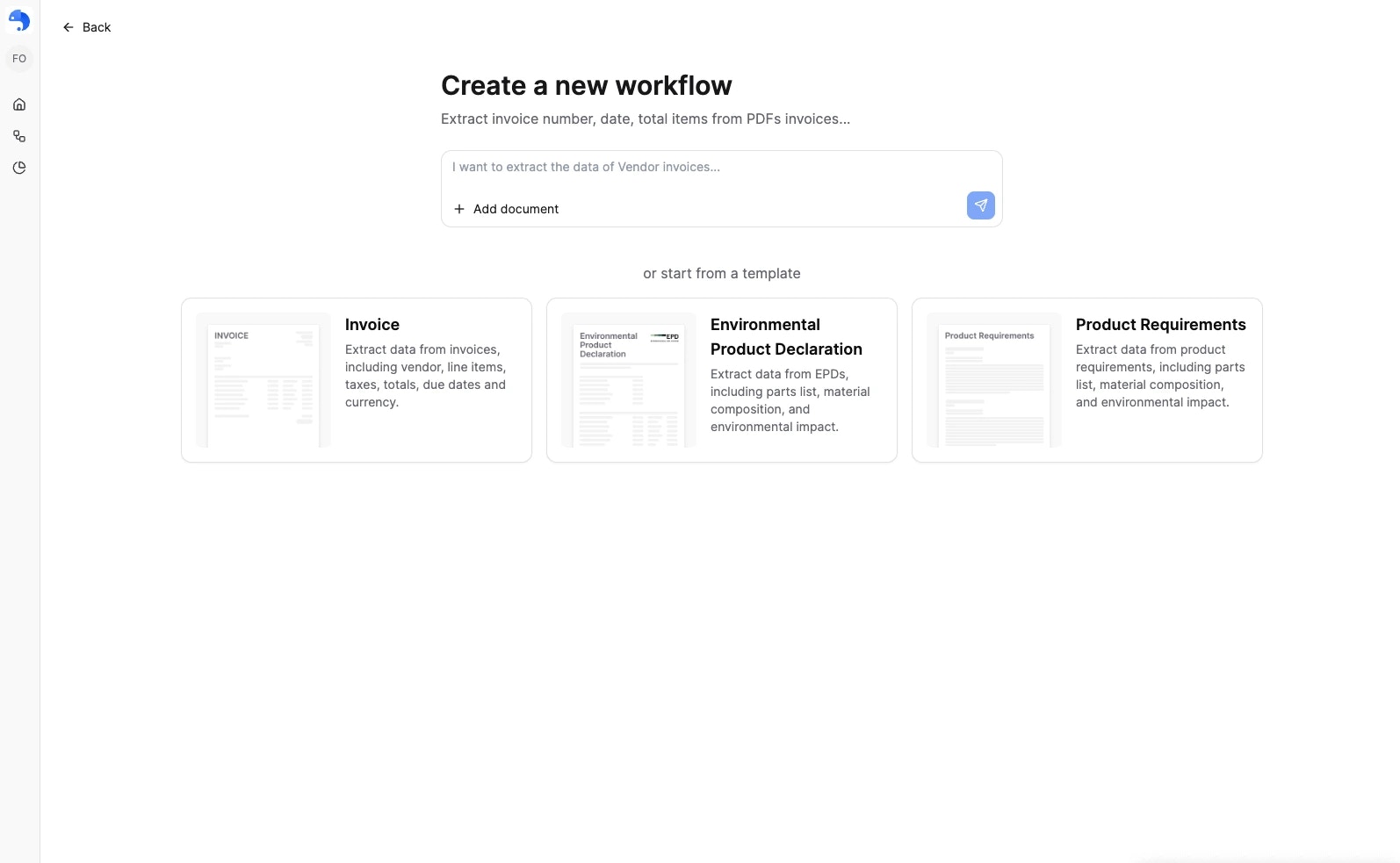
Document templates are pre-configured starting points for common document types.
They represent:
* A known document category
* A partially defined schema
***
## Available templates
When you create a workflow, you can start from one of these ready-made templates:
| Template | What it extracts |
| ------------------------------------------ | ---------------------------------------------------------- |
| **Invoice** | Vendor, line items, taxes, totals, due dates, and currency |
| **Environmental Product Declaration** | Parts list, material composition, and environmental impact |
| **Product Requirements** | Parts list, material composition, and specifications |
| **Modelo 200 (Impuesto sobre Sociedades)** | Data from the Spanish corporate income tax return |
If your document type isn't listed, just [describe it](/guides/workflows/creating) instead — templates are a convenience, not the only way in.
Templates save time, but behave like normal workflows once created.
### Why this matters
Versioning is your safety net. For example: say you edit an invoice workflow so the "total" field excludes VAT — and the next batch of results suddenly looks wrong. Because the previous version was saved automatically, you can look back at the history and return to the version that was working, instead of trying to rebuild it from memory.
Editing a workflow only affects **future** runs. Documents you've already processed keep the results from the version they were run on — changing the workflow doesn't silently rewrite past data.
***
## Document templates
Document templates are pre-configured starting points for common document types.
They represent:
* A known document category
* A partially defined schema
***
## Available templates
When you create a workflow, you can start from one of these ready-made templates:
| Template | What it extracts |
| ------------------------------------------ | ---------------------------------------------------------- |
| **Invoice** | Vendor, line items, taxes, totals, due dates, and currency |
| **Environmental Product Declaration** | Parts list, material composition, and environmental impact |
| **Product Requirements** | Parts list, material composition, and specifications |
| **Modelo 200 (Impuesto sobre Sociedades)** | Data from the Spanish corporate income tax return |
If your document type isn't listed, just [describe it](/guides/workflows/creating) instead — templates are a convenience, not the only way in.
Templates save time, but behave like normal workflows once created.
 ***
## How templates work
When you use a template:
1. A new workflow is created with pre-defined fields
2. You can modify the schema as needed
3. The workflow follows the same lifecycle (Define → Refine → Publish)
Templates are just a faster starting point — you're not locked into anything.
***
## When to use templates
Use templates when:
* You're working with a common document type
* You want to get started quickly
* You're not sure what fields to define
Use custom workflows when:
* Your document type is unique
* You need specific fields not in templates
* You want full control from the start
***
## What's next?
Learn the full workflow creation process
Monitor and improve quality
***
## How templates work
When you use a template:
1. A new workflow is created with pre-defined fields
2. You can modify the schema as needed
3. The workflow follows the same lifecycle (Define → Refine → Publish)
Templates are just a faster starting point — you're not locked into anything.
***
## When to use templates
Use templates when:
* You're working with a common document type
* You want to get started quickly
* You're not sure what fields to define
Use custom workflows when:
* Your document type is unique
* You need specific fields not in templates
* You want full control from the start
***
## What's next?
Learn the full workflow creation process
Monitor and improve quality