> ## Documentation Index
> Fetch the complete documentation index at: https://docs.anyformat.ai/llms.txt
> Use this file to discover all available pages before exploring further.
# Verification & Review
> Reviewing and verifying extracted data at scale
Once a workflow has been created and documents have been processed, the next step is to **review and verify the extracted data** — confirm it's correct, and fix anything that isn't.
This section is about:
* Reviewing results
* Verifying data
* Correcting outputs
* Preparing data for export or use
***
## Two things that sound alike
It's easy to confuse these, so to be clear:
Done while building — improves how data is extracted **going forward**, on every future document.
Done after processing — confirms whether the data extracted from a **specific document** is correct.
If results aren't good enough, you can always go back and **refine the workflow**.
anyformat learns from your verifications and corrections over time to improve future results.
This section focuses on **verifying results**, not on editing the workflow.
***
## Table view
### Reviewing data at scale
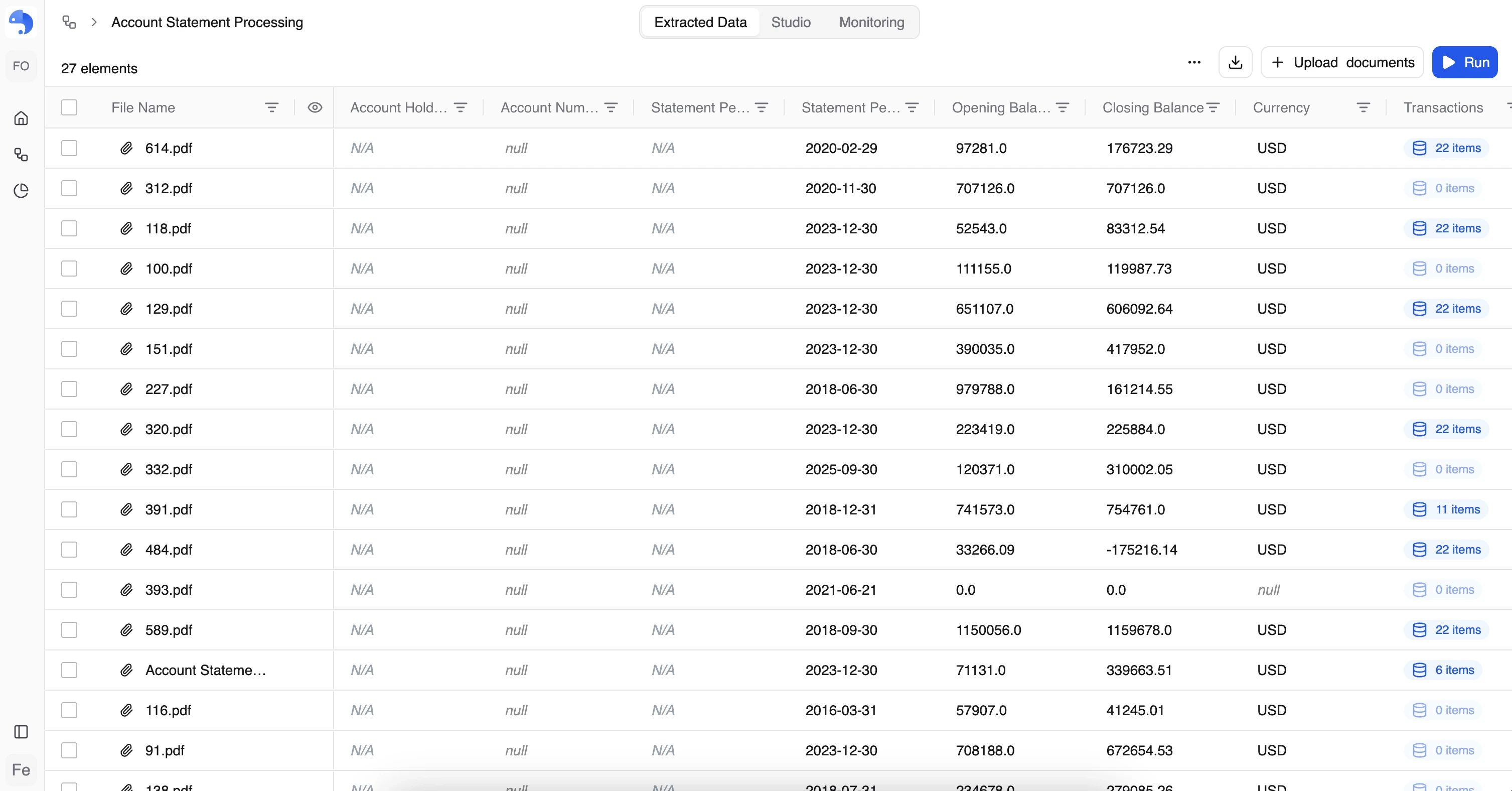
The **table view** lets you review all extracted data across documents.
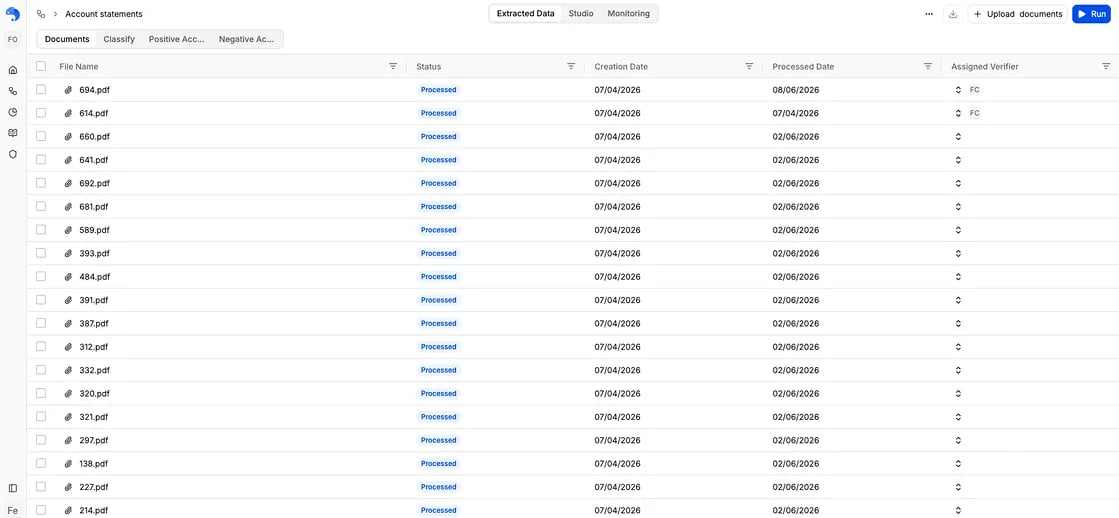
The first tab shows your documents, where you'll see:
* One row per document
* One column per field in the schema
* Metadata such as creation date, processed date, and who verified it
Alongside the documents tab, there's a tab for each step in your workflow (Parse, Classify, Split, Extraction, Validation), so you can review the output of each stage on its own.
***
### Table actions
From the table view, you can:
* Run the workflow on unprocessed documents
* Download processed results (CSV, Excel, JSON)
* Delete selected documents
* Open a document in the document view (click its filename)
* Download results per document (row-level export)
You can select one or multiple documents to apply actions.
***
### Working with columns
In the table view you can:
* Reorder columns
* Resize columns
* Sort by any column
* Filter by any column
* Search by document or field value
This makes it easy to spot errors, find edge cases, and focus review where it matters.
***
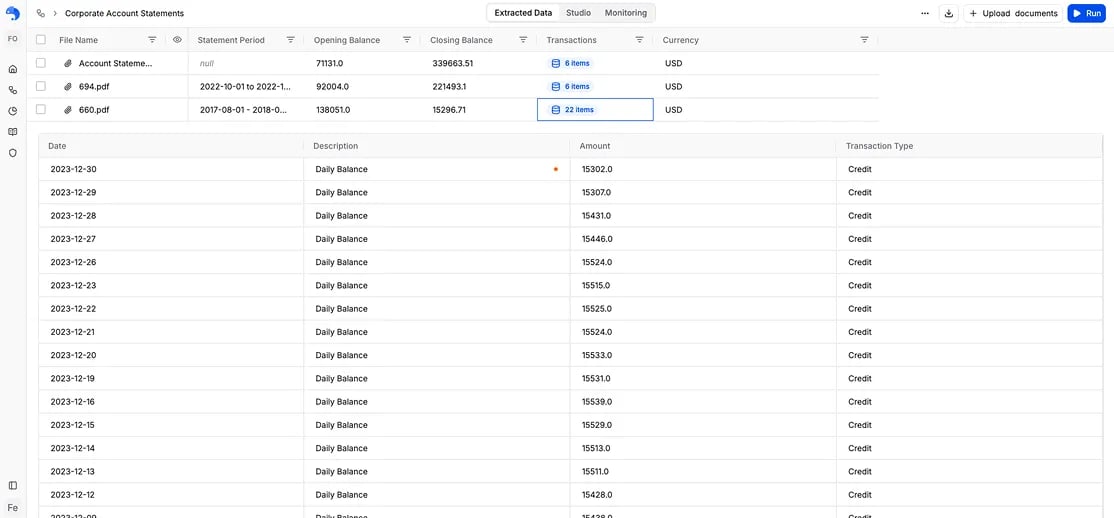
### Objects in table view
Fields of type **Object (Subtable)** — like invoice line items — appear as their own table. Expand the object to see every row laid out together, so you can review repeated data on its own.
***
## Document view
### Reviewing one document at a time
To open a single document, **click its filename** in the table. This opens the **document view**, designed for detailed, per-document review.
The layout is similar to the workflow creation view:
* Document viewer on one side
* Extracted fields on the other
It has the same per-step tabs as the table view (Parse, Classify, Split, Extraction, Validation), so you can check each stage for that document. The key difference from the build screen:
> Here, you are verifying final results, not changing the workflow.
***
### Visual grounding and evidence
Each extracted value is visually linked to the document:
* A single color highlights where the value appears in the document
* Clicking a field highlights it in the document — and clicking an area in the document highlights the corresponding field
This helps you understand *why* a value was extracted.
***
### Confidence indicators
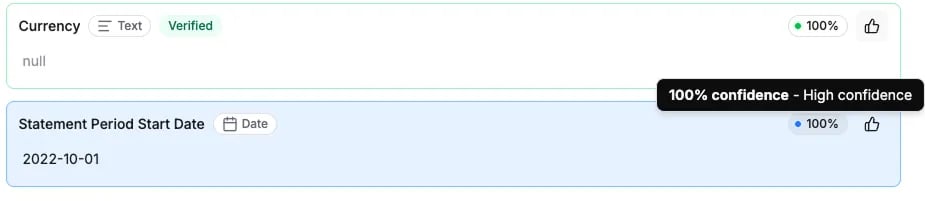
Each field shows a **confidence score** — a quick signal of how sure anyformat is about that value.
* Shown as a percentage with a colored dot
* Explained on hover
* Low-confidence values are the ones worth checking first
The goal is to reduce your effort by telling you where to look. See [Confidence & accuracy](/guides/workflows/analytics-quality) for what confidence does and doesn't mean.
***
## Verifying results
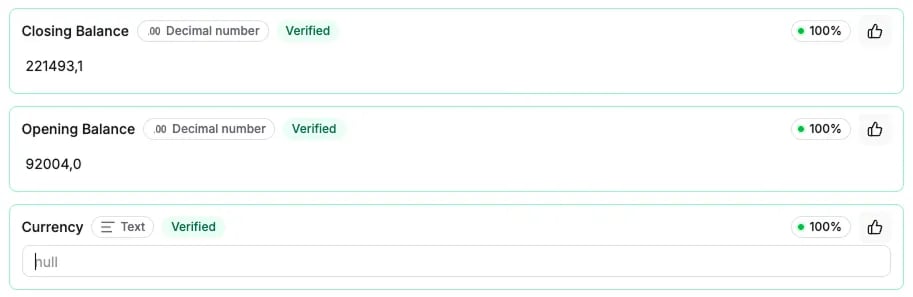
When a value is correct, you mark it as **verified** with the thumbs-up button. You can verify:
* Individual fields
* Entire documents
* Multiple documents at once
A verified field turns green. To undo, press the thumbs-up again (or use **Undo** after an edit). As you verify, the document's status updates to **Verified**.
***
### Keyboard shortcuts
To speed up review:
| Shortcut | Action |
| --------------- | ------------------------------------ |
| `Shift + ← / →` | Navigate between documents |
| `Ctrl + Enter` | Verify the current document |
| `Shift + Enter` | Verify and move to the next document |
***
## Correcting outputs
When a value is incorrect, just edit it. The corrected value is saved as the verified result, so what you export reflects your fix.
For **Object (Subtable)** fields you can verify individual rows or the whole object. You can also add new rows, or filter to show only the rows visible on the current page.
***
## What's next?
Monitor and improve quality over time
Learn about export formats and using data externally
 ***
### Table actions
From the table view, you can:
* Run the workflow on unprocessed documents
* Download processed results (CSV, Excel, JSON)
* Delete selected documents
* Open a document in the document view (click its filename)
* Download results per document (row-level export)
You can select one or multiple documents to apply actions.
***
### Working with columns
In the table view you can:
* Reorder columns
* Resize columns
* Sort by any column
* Filter by any column
* Search by document or field value
This makes it easy to spot errors, find edge cases, and focus review where it matters.
***
### Objects in table view
Fields of type **Object (Subtable)** — like invoice line items — appear as their own table. Expand the object to see every row laid out together, so you can review repeated data on its own.
***
### Table actions
From the table view, you can:
* Run the workflow on unprocessed documents
* Download processed results (CSV, Excel, JSON)
* Delete selected documents
* Open a document in the document view (click its filename)
* Download results per document (row-level export)
You can select one or multiple documents to apply actions.
***
### Working with columns
In the table view you can:
* Reorder columns
* Resize columns
* Sort by any column
* Filter by any column
* Search by document or field value
This makes it easy to spot errors, find edge cases, and focus review where it matters.
***
### Objects in table view
Fields of type **Object (Subtable)** — like invoice line items — appear as their own table. Expand the object to see every row laid out together, so you can review repeated data on its own.
 ***
## Document view
### Reviewing one document at a time
To open a single document, **click its filename** in the table. This opens the **document view**, designed for detailed, per-document review.
The layout is similar to the workflow creation view:
* Document viewer on one side
* Extracted fields on the other
It has the same per-step tabs as the table view (Parse, Classify, Split, Extraction, Validation), so you can check each stage for that document. The key difference from the build screen:
> Here, you are verifying final results, not changing the workflow.
***
## Document view
### Reviewing one document at a time
To open a single document, **click its filename** in the table. This opens the **document view**, designed for detailed, per-document review.
The layout is similar to the workflow creation view:
* Document viewer on one side
* Extracted fields on the other
It has the same per-step tabs as the table view (Parse, Classify, Split, Extraction, Validation), so you can check each stage for that document. The key difference from the build screen:
> Here, you are verifying final results, not changing the workflow.
 ***
### Visual grounding and evidence
Each extracted value is visually linked to the document:
* A single color highlights where the value appears in the document
* Clicking a field highlights it in the document — and clicking an area in the document highlights the corresponding field
This helps you understand *why* a value was extracted.
***
### Confidence indicators
Each field shows a **confidence score** — a quick signal of how sure anyformat is about that value.
* Shown as a percentage with a colored dot
* Explained on hover
* Low-confidence values are the ones worth checking first
The goal is to reduce your effort by telling you where to look. See [Confidence & accuracy](/guides/workflows/analytics-quality) for what confidence does and doesn't mean.
***
### Visual grounding and evidence
Each extracted value is visually linked to the document:
* A single color highlights where the value appears in the document
* Clicking a field highlights it in the document — and clicking an area in the document highlights the corresponding field
This helps you understand *why* a value was extracted.
***
### Confidence indicators
Each field shows a **confidence score** — a quick signal of how sure anyformat is about that value.
* Shown as a percentage with a colored dot
* Explained on hover
* Low-confidence values are the ones worth checking first
The goal is to reduce your effort by telling you where to look. See [Confidence & accuracy](/guides/workflows/analytics-quality) for what confidence does and doesn't mean.
 ***
## Verifying results
When a value is correct, you mark it as **verified** with the thumbs-up button. You can verify:
* Individual fields
* Entire documents
* Multiple documents at once
A verified field turns green. To undo, press the thumbs-up again (or use **Undo** after an edit). As you verify, the document's status updates to **Verified**.
***
## Verifying results
When a value is correct, you mark it as **verified** with the thumbs-up button. You can verify:
* Individual fields
* Entire documents
* Multiple documents at once
A verified field turns green. To undo, press the thumbs-up again (or use **Undo** after an edit). As you verify, the document's status updates to **Verified**.
 ***
### Keyboard shortcuts
To speed up review:
| Shortcut | Action |
| --------------- | ------------------------------------ |
| `Shift + ← / →` | Navigate between documents |
| `Ctrl + Enter` | Verify the current document |
| `Shift + Enter` | Verify and move to the next document |
***
## Correcting outputs
When a value is incorrect, just edit it. The corrected value is saved as the verified result, so what you export reflects your fix.
For **Object (Subtable)** fields you can verify individual rows or the whole object. You can also add new rows, or filter to show only the rows visible on the current page.
***
## What's next?
***
### Keyboard shortcuts
To speed up review:
| Shortcut | Action |
| --------------- | ------------------------------------ |
| `Shift + ← / →` | Navigate between documents |
| `Ctrl + Enter` | Verify the current document |
| `Shift + Enter` | Verify and move to the next document |
***
## Correcting outputs
When a value is incorrect, just edit it. The corrected value is saved as the verified result, so what you export reflects your fix.
For **Object (Subtable)** fields you can verify individual rows or the whole object. You can also add new rows, or filter to show only the rows visible on the current page.
***
## What's next?