> ## Documentation Index
> Fetch the complete documentation index at: https://docs.anyformat.ai/llms.txt
> Use this file to discover all available pages before exploring further.
# Running Workflows
> How to run workflows on documents in anyformat
Once a workflow is published, you can run it on documents to extract structured data.
***
## Adding documents
Documents can be added to a workflow:
* **Manually** - Upload through the interface
* **Via API** - Send documents programmatically
* **Cloud storage** - Connect to Google Drive or Microsoft SharePoint
***
## Document statuses
Each document has a status that reflects its state:
| Status | Description |
| --------------- | --------------------------------------------------------------------------- |
| **Not started** | The workflow has not been run on this document yet |
| **Queued** | The document is waiting for an available processing slot |
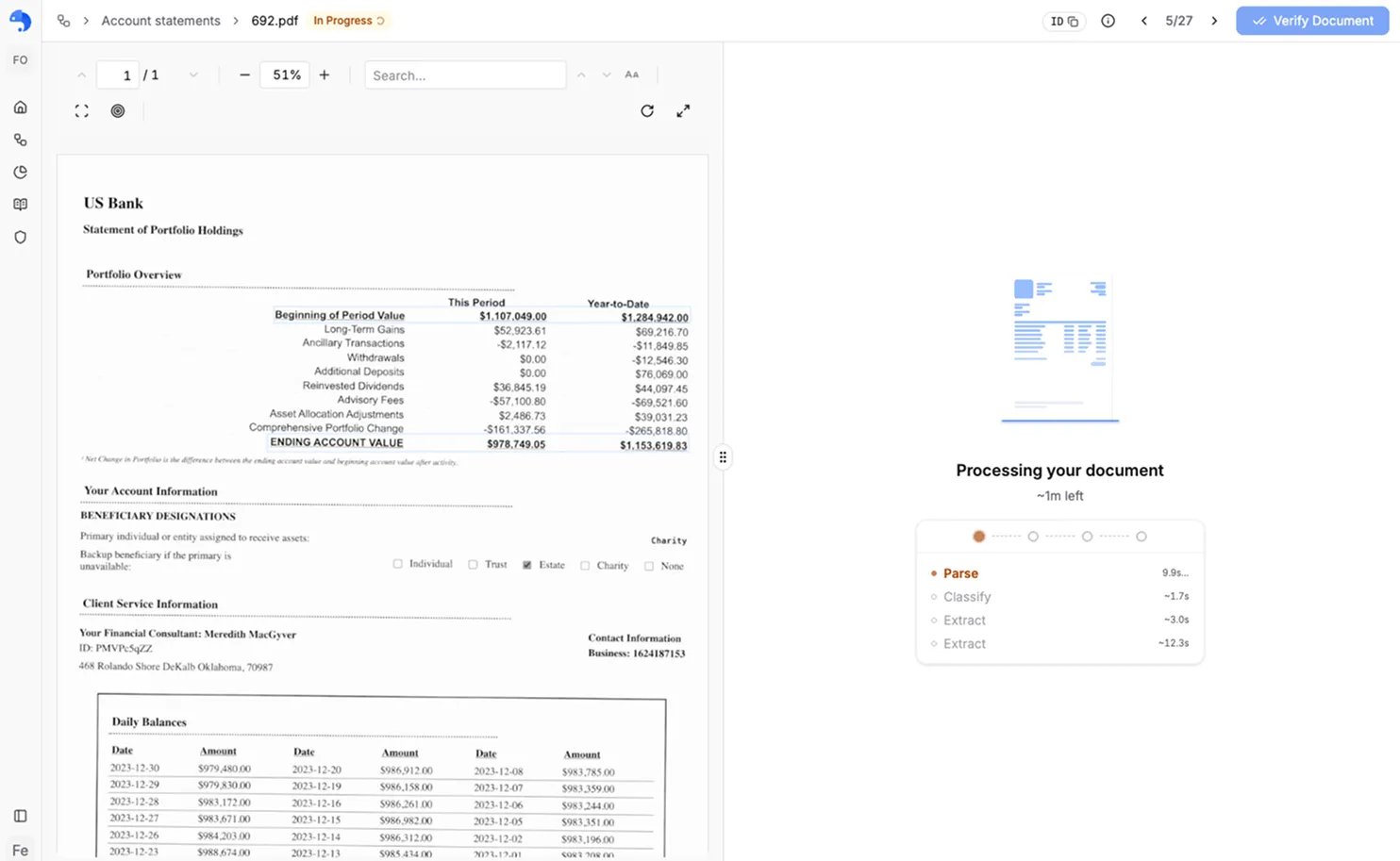
| **In progress** | anyformat is currently processing the document |
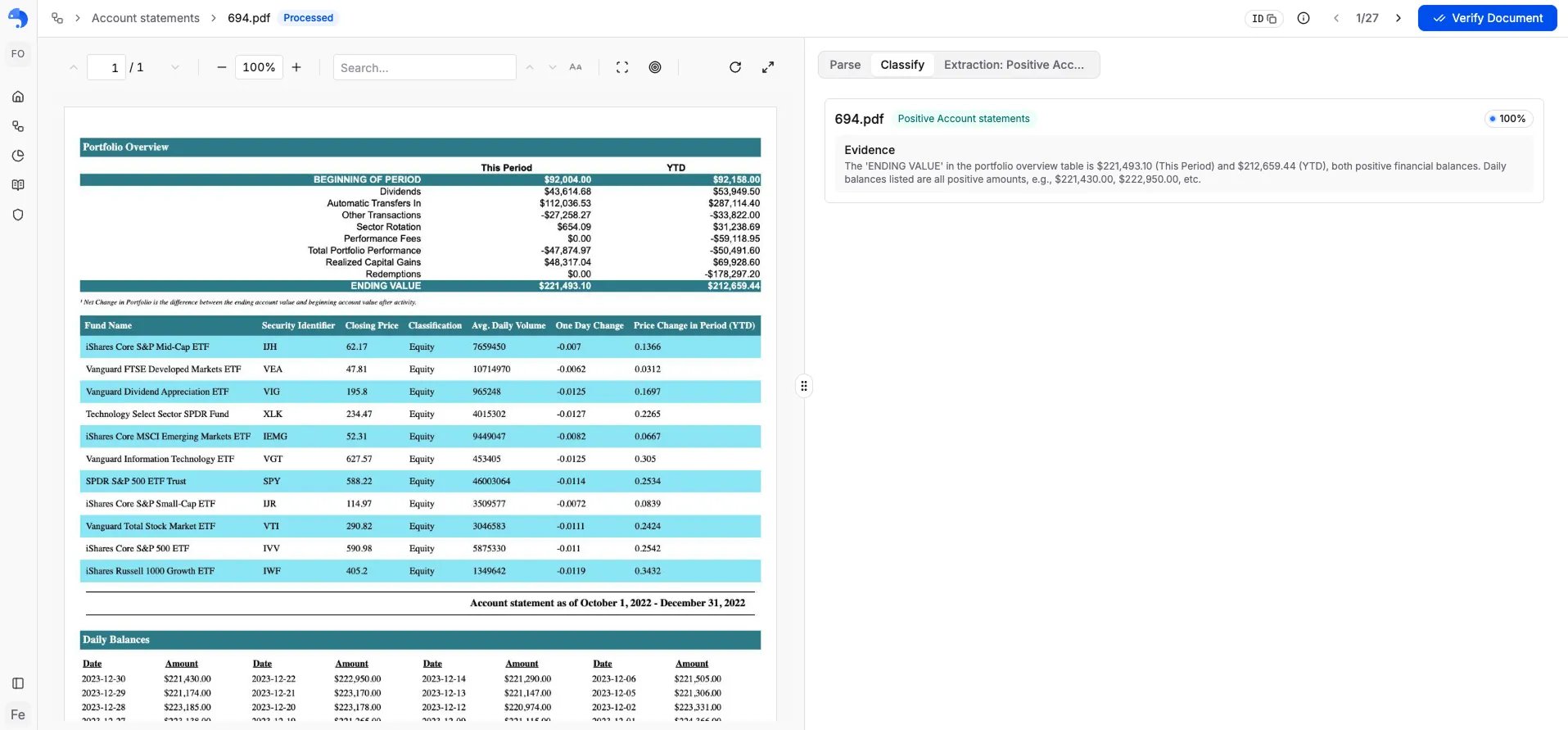
| **Processed** | The document has been processed, but not yet reviewed |
| **Verified** | The extracted data has been reviewed and confirmed correct (shown in green) |
| **Error** | There was an error during processing (not counted toward usage) |
| **Cancelled** | Processing was cancelled before it finished |
***
## Running a workflow
There are two ways to start processing:
* **In bulk, from the table:** select the documents that haven't been processed and click **Run**.
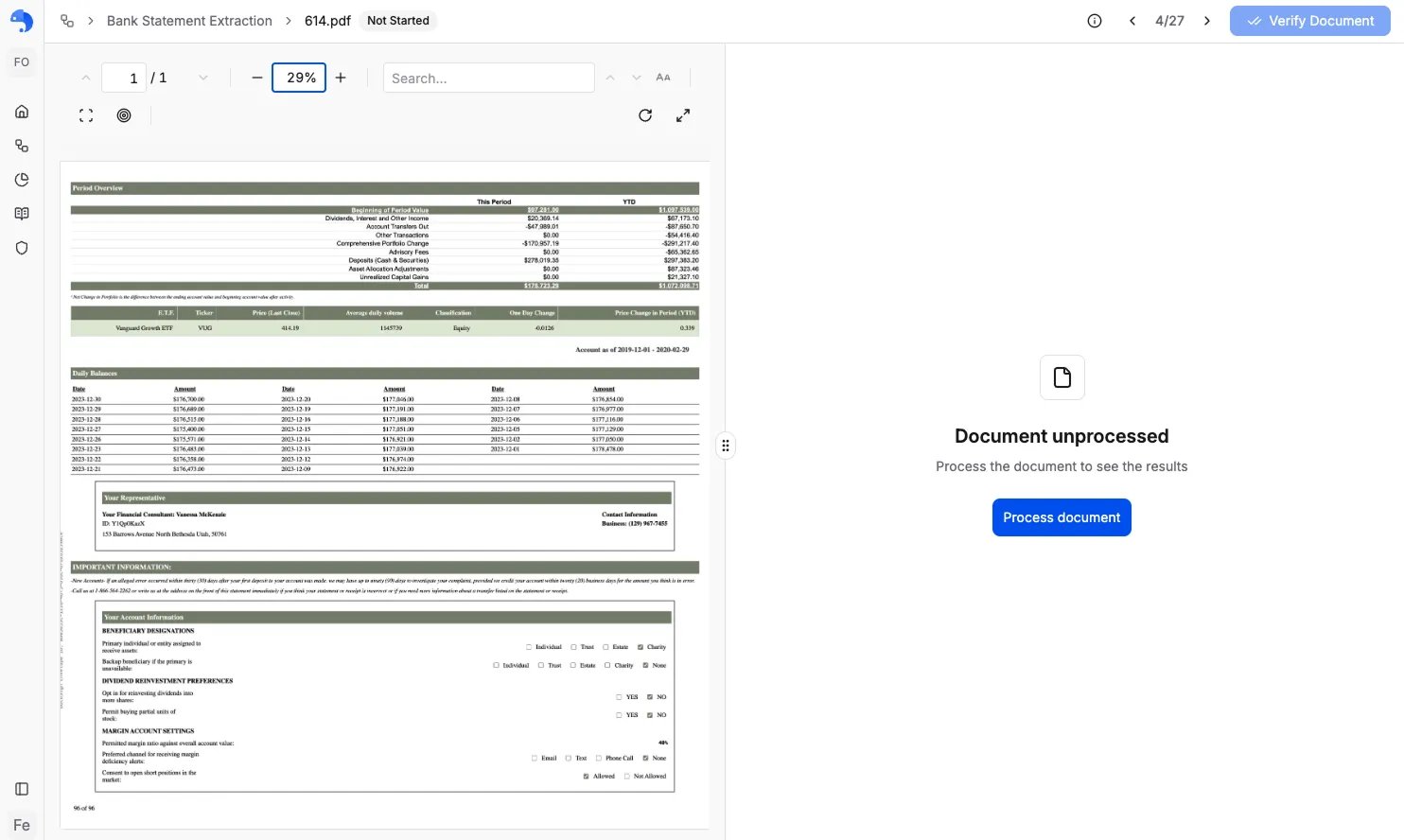
* **One at a time, from the document view:** open a document (click its filename in the table) and click **Process document** in the panel on the right. If a document errored, the same button reads **Process again** so you can retry it.
Processing usually takes anywhere from a few seconds for a short document to a couple of minutes for a long one. It depends on:
* Document size
* Number of pages
* Current system load
If a document ends up in **Error**, open it and click **Process again** to retry. Errors are usually temporary or caused by an unreadable file — errored documents aren't counted toward usage. If it keeps failing, check that the file isn't corrupted or password-protected.
***
## Viewing results
As soon as a document finishes processing, its results appear automatically — no need to refresh. You can view them two ways:
Review all your documents at once. The first tab shows your documents (one row per document, one column per field); additional tabs show the output of each step in your workflow (Parse, Classify, Split, Extraction, Validation).
Open one document (click its filename) to review it on its own, with each value highlighted on the page it came from. It has the same per-step tabs as the table view.
***
## Exporting results
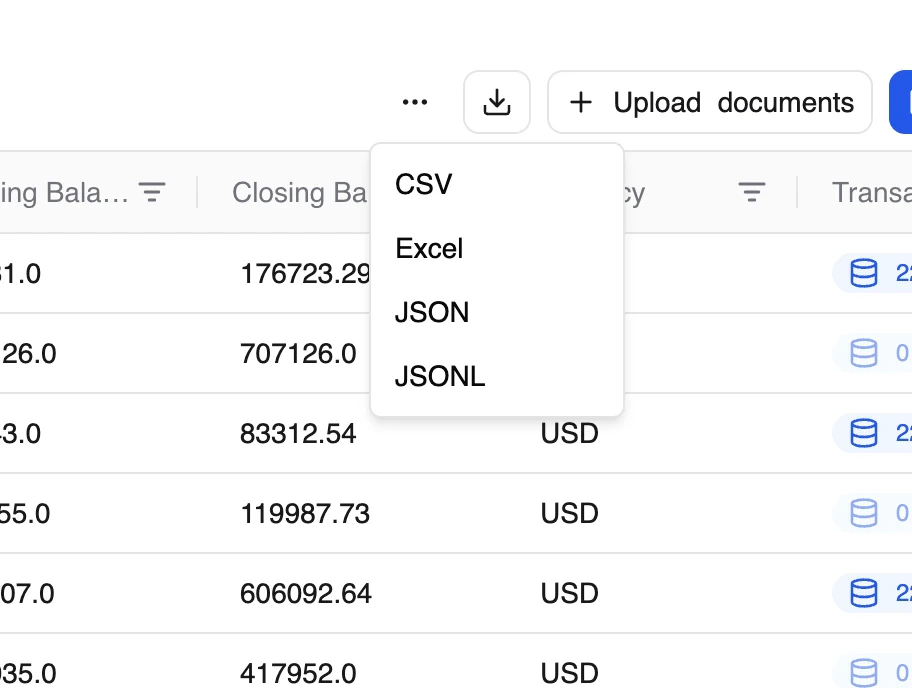
From the workflow view, you can download processed results in:
* **CSV** - For spreadsheets and data analysis
* **Excel** - For business users
* **JSON** - For integrations and automation
You can export:
* All documents at once
* Selected documents
* Individual documents (row-level export)
***
## What's next?
Learn how to verify and correct extracted data
Monitor and improve quality
 ***
## Running a workflow
There are two ways to start processing:
* **In bulk, from the table:** select the documents that haven't been processed and click **Run**.
* **One at a time, from the document view:** open a document (click its filename in the table) and click **Process document** in the panel on the right. If a document errored, the same button reads **Process again** so you can retry it.
Processing usually takes anywhere from a few seconds for a short document to a couple of minutes for a long one. It depends on:
* Document size
* Number of pages
* Current system load
***
## Running a workflow
There are two ways to start processing:
* **In bulk, from the table:** select the documents that haven't been processed and click **Run**.
* **One at a time, from the document view:** open a document (click its filename in the table) and click **Process document** in the panel on the right. If a document errored, the same button reads **Process again** so you can retry it.
Processing usually takes anywhere from a few seconds for a short document to a couple of minutes for a long one. It depends on:
* Document size
* Number of pages
* Current system load
 ***
## Exporting results
From the workflow view, you can download processed results in:
* **CSV** - For spreadsheets and data analysis
* **Excel** - For business users
* **JSON** - For integrations and automation
You can export:
* All documents at once
* Selected documents
* Individual documents (row-level export)
***
## Exporting results
From the workflow view, you can download processed results in:
* **CSV** - For spreadsheets and data analysis
* **Excel** - For business users
* **JSON** - For integrations and automation
You can export:
* All documents at once
* Selected documents
* Individual documents (row-level export)
 ***
## What's next?
***
## What's next?