> ## Documentation Index
> Fetch the complete documentation index at: https://docs.anyformat.ai/llms.txt
> Use this file to discover all available pages before exploring further.
# Analytics & Quality
> Understanding and improving processing quality over time
Analytics help you answer one practical question: **can I trust this workflow's results before I rely on them?**
Once you've verified some documents, the **Analytics** tab in each workflow shows you how well it's performing — how reliable the results are, where errors tend to appear, and which fields need attention.
**The short version:** anyformat gives every value a **confidence** score so you know where to look — review the low-confidence ones first. Over time, your verifications produce an **accuracy** number that tells you how often the workflow is actually right. Aim for high accuracy with light review on the low-confidence cases — you don't need to check everything.
The rest of this page explains both numbers in detail.
***
## Confidence
### What is confidence?
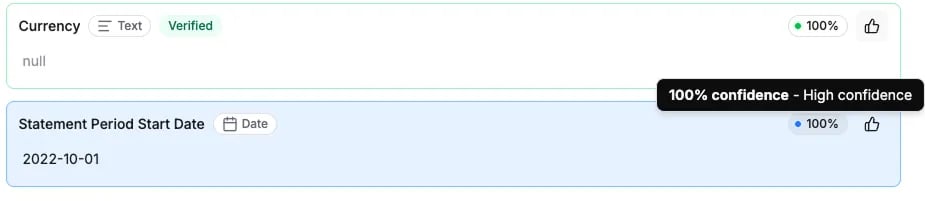
**Confidence** represents how certain anyformat is about an extracted value.
It's expressed as a percentage:
* **High confidence** - the model is very sure
* **Low confidence** - the value may be ambiguous or unclear
Confidence is calculated per:
* Field
* Document
* Workflow (average)
 ***
### What confidence is (and isn't)
* A **signal**, not a verdict
* A way to prioritize human review
* A guide for where to look first
* A guarantee of correctness
* A replacement for verifying results yourself
* A measure of business accuracy
A value can have:
* High confidence and still be wrong
* Low confidence and still be correct
***
### How to use confidence effectively
Use confidence to:
* Focus review on low-confidence fields
* Skip reviewing obviously reliable values
* Reduce overall human effort
A good workflow doesn't eliminate low confidence — it **contains it**.
***
## Accuracy explained
### What is accuracy?
**Accuracy** measures how often extracted values are actually **correct**, based on the documents you've verified.
> Accuracy reflects confirmed correctness, not how sure the model felt.
Accuracy is calculated from:
* Fields you verified as correct
* Fields you corrected
***
### Accuracy vs confidence
| Confidence | Accuracy |
| ------------------------------------------------ | --------------------------------- |
| How sure the model is | How often it's confirmed right |
| Available immediately, before you check anything | Builds up as you verify documents |
| A guess about each value, up front | A track record, after the fact |
| Helps you prioritize what to review | Measures real performance |
You need **both**:
* Confidence to guide review
* Accuracy to judge quality
***
### What accuracy tells you
Accuracy helps you answer:
* Can I trust this workflow?
* Is it ready to scale?
* Which fields are fragile?
Low accuracy usually points to:
* Ambiguous instructions
* Poor field definitions
* Edge cases in documents
***
## Viewing analytics
### Workflow-level analytics
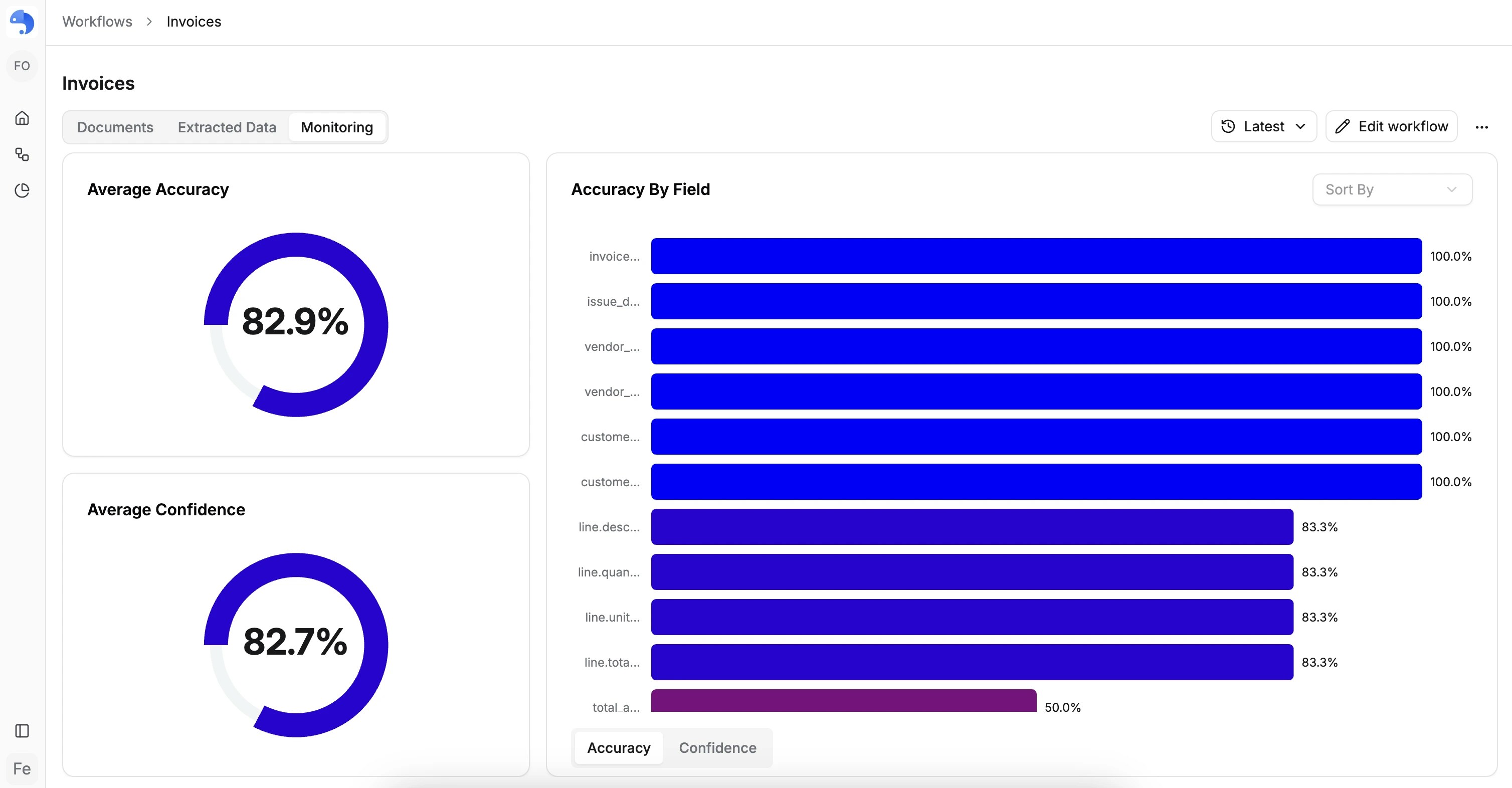
In the **Analytics** tab of a workflow, you can see:
* Average confidence
* Average accuracy
* Trends over time (if available)
This gives you a high-level sense of workflow health.
***
### What confidence is (and isn't)
* A **signal**, not a verdict
* A way to prioritize human review
* A guide for where to look first
* A guarantee of correctness
* A replacement for verifying results yourself
* A measure of business accuracy
A value can have:
* High confidence and still be wrong
* Low confidence and still be correct
***
### How to use confidence effectively
Use confidence to:
* Focus review on low-confidence fields
* Skip reviewing obviously reliable values
* Reduce overall human effort
A good workflow doesn't eliminate low confidence — it **contains it**.
***
## Accuracy explained
### What is accuracy?
**Accuracy** measures how often extracted values are actually **correct**, based on the documents you've verified.
> Accuracy reflects confirmed correctness, not how sure the model felt.
Accuracy is calculated from:
* Fields you verified as correct
* Fields you corrected
***
### Accuracy vs confidence
| Confidence | Accuracy |
| ------------------------------------------------ | --------------------------------- |
| How sure the model is | How often it's confirmed right |
| Available immediately, before you check anything | Builds up as you verify documents |
| A guess about each value, up front | A track record, after the fact |
| Helps you prioritize what to review | Measures real performance |
You need **both**:
* Confidence to guide review
* Accuracy to judge quality
***
### What accuracy tells you
Accuracy helps you answer:
* Can I trust this workflow?
* Is it ready to scale?
* Which fields are fragile?
Low accuracy usually points to:
* Ambiguous instructions
* Poor field definitions
* Edge cases in documents
***
## Viewing analytics
### Workflow-level analytics
In the **Analytics** tab of a workflow, you can see:
* Average confidence
* Average accuracy
* Trends over time (if available)
This gives you a high-level sense of workflow health.
 ***
### Field-level analytics
You can also analyze metrics **per field**:
* Average confidence by field
* Accuracy by field
* Sort fields by performance
This is often the most useful view. It helps you quickly spot:
* Fields that consistently fail
* Fields that don't need review anymore
* Outliers dragging accuracy down
***
## Improving results
### How to improve confidence
To improve confidence:
* Make instructions more explicit
* Clarify where information appears
* Reduce ambiguity in field definitions
* Split complex fields into simpler ones
Confidence improves when field definitions become clearer.
***
### How to improve accuracy
To improve accuracy:
* Correct wrong values while verifying
* Review low-confidence fields carefully
* Refine the workflow when patterns appear
* Adjust fields or instructions if needed
Accuracy improves through **human feedback loops**.
***
### When to refine the workflow
You should consider refining a workflow when:
* The same field is often corrected
* Accuracy plateaus below expectations
* New document variations appear
Refinement improves **future documents**, not past ones.
***
## A realistic quality goal
You don't need:
* 100% confidence
* 100% accuracy
A good goal is:
> High accuracy with focused human review on low-confidence cases.
That's how anyformat scales without burning time.
***
## How Analytics fits into the bigger picture
**Verification** tells you *what is correct now*.
**Analytics** tells you *how good the system is overall*.
Together, they help you:
* Decide where to spend time
* Decide when to scale
* Decide when a workflow is "good enough"
***
## What's next?
Improve field definitions and instructions to raise accuracy
End-to-end examples for common document types
***
### Field-level analytics
You can also analyze metrics **per field**:
* Average confidence by field
* Accuracy by field
* Sort fields by performance
This is often the most useful view. It helps you quickly spot:
* Fields that consistently fail
* Fields that don't need review anymore
* Outliers dragging accuracy down
***
## Improving results
### How to improve confidence
To improve confidence:
* Make instructions more explicit
* Clarify where information appears
* Reduce ambiguity in field definitions
* Split complex fields into simpler ones
Confidence improves when field definitions become clearer.
***
### How to improve accuracy
To improve accuracy:
* Correct wrong values while verifying
* Review low-confidence fields carefully
* Refine the workflow when patterns appear
* Adjust fields or instructions if needed
Accuracy improves through **human feedback loops**.
***
### When to refine the workflow
You should consider refining a workflow when:
* The same field is often corrected
* Accuracy plateaus below expectations
* New document variations appear
Refinement improves **future documents**, not past ones.
***
## A realistic quality goal
You don't need:
* 100% confidence
* 100% accuracy
A good goal is:
> High accuracy with focused human review on low-confidence cases.
That's how anyformat scales without burning time.
***
## How Analytics fits into the bigger picture
**Verification** tells you *what is correct now*.
**Analytics** tells you *how good the system is overall*.
Together, they help you:
* Decide where to spend time
* Decide when to scale
* Decide when a workflow is "good enough"
***
## What's next?
Improve field definitions and instructions to raise accuracy
End-to-end examples for common document types