> ## Documentation Index
> Fetch the complete documentation index at: https://docs.anyformat.ai/llms.txt
> Use this file to discover all available pages before exploring further.
# Using Studio
> Open Studio, add steps to the canvas, connect them, and build workflows that go beyond Parse → Extract.
**[Studio](/concepts/studio)** is the visual editor where you refine a workflow on a canvas — adding steps, connecting them, and configuring each one.
You reach Studio by [describing what you want to annie](/concepts/annie): she builds the workflow and opens it here. Studio is where you take it further — **sort** documents by type, **split** a file that holds several documents, or **check** results against your own rules — either by asking annie in the **Chat** tab or editing the steps yourself.
***
## Opening Studio
* **Create a new workflow:** describe what you want to [annie](/concepts/annie) on the home screen. She builds the workflow and drops you into Studio, with the conversation continuing in the **Chat** tab.
* **On an existing workflow:** open the workflow and click the **Studio** tab.
***
## The layout
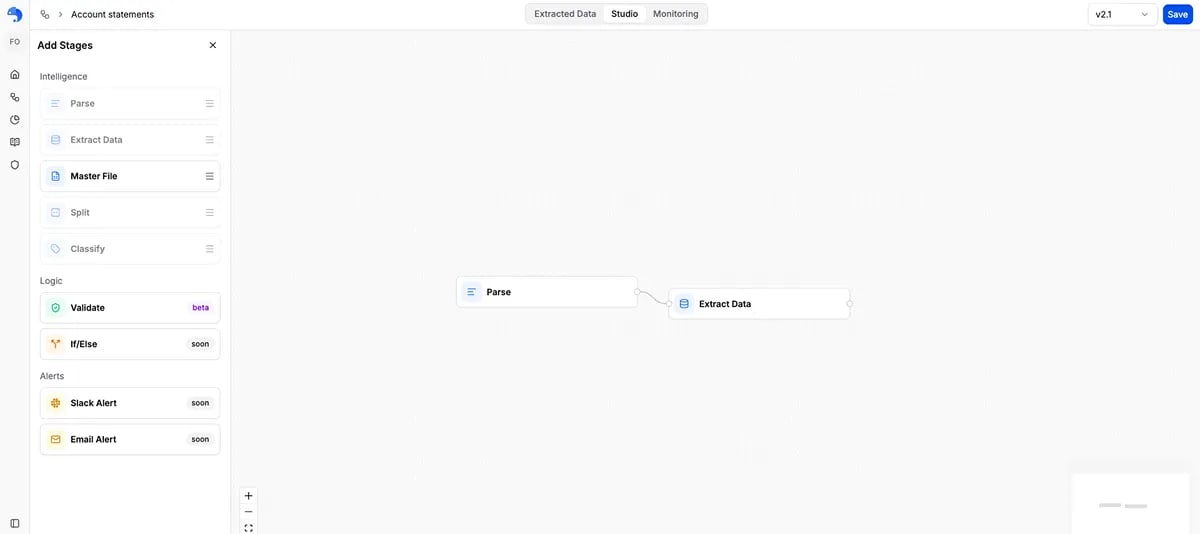 Studio has three areas:
* **Add Stages** (left) — the palette of steps you can drag onto the canvas.
* **Canvas** (center) — your workflow: the steps and the connections between them.
* **Configuration panel** (right) — opens when you click a step, where you set it up (define fields, categories, rules, and so on).
***
## Working with steps
**Add a step** — drag it from the **Add Stages** panel on the left onto the canvas and drop it where you want it. Every workflow needs a **Parse** step first; it's already there in the workflow annie builds for you.
**Open and configure a step** — click a step on the canvas. Its configuration panel opens on the right, where you set it up: the fields for Extract, the categories for Classify, the rules for Split or Validate. Click empty canvas (or another step) to switch away.
**Move a step** — drag it around the canvas to keep things tidy. Position is just for readability; it doesn't change how the workflow runs.
**Remove a step** — hover over the step and click the **⋯** (*Node options*) button in its corner, then choose **Remove**.
***
## Working with connections
Connections set the **order** the steps run in — the output of one step flows into the next.
**Make a connection** — drag from the small handle on the right edge of a step to the handle on the left edge of the next step. For example, drag from **Parse** to **Extract** so the text Parse produces flows into Extract.
**Remove a connection** — hover over the connecting line and click the **×** button that appears on it.
### What can connect to what
The steps only connect in ways that make sense, so you can't build a broken workflow:
* **Parse** is always the first step. Nothing connects *into* it, and there's only **one** Parse per workflow.
* **Parse** can connect to **Extract**, **Classify**, or **Split**.
* **Classify** and **Split** connect onward to **Extract** — one Extract per category or split rule, so each type is handled on its own.
* **Extract** can connect to **Validate**.
* **Validate** is an end step — nothing connects out of it.
Each output connects to one next step. If you need a step to feed several others (like a different Extract per document type), that's what **Classify** and **Split** are for — they branch automatically into one output per category.
***
## Run and refine
Once your steps are connected and configured, add a sample document and run it, check the results, and adjust until they look right. See **[The building blocks](/guides/studio/nodes)** for what each step does and how to configure it.
***
## Common shapes
The same steps arranged differently cover most needs:
### Read only
Just **Parse**. You get clean text and tables back — useful when you want to feed anyformat's output into your own tools rather than pulling out specific fields.
```
[ Parse ]
```
### Read, then pull out
**Parse → Extract**. The default: read the document and return the fields you defined.
```
[ Parse ] → [ Extract ]
```
### Sort first, then pull out
**Parse → Classify**, then a separate **Extract** for each type. Use this when one workflow needs to handle several kinds of document differently. **Split** works the same way for files that hold several documents stapled together.
```
┌──> [ Extract: invoice ]
[ Parse ] → [ Classify ] ─┤
└──> [ Extract: receipt ]
```
### Add a check at the end
Put a **Validate** step after Extract to flag results that break your rules (an expired date, a malformed ID) before you trust them.
```
[ Parse ] → [ Extract ] → [ Validate ]
```
***
## What's next?
What each step does and how to set it up
Review and verify the results your workflow produces
Studio has three areas:
* **Add Stages** (left) — the palette of steps you can drag onto the canvas.
* **Canvas** (center) — your workflow: the steps and the connections between them.
* **Configuration panel** (right) — opens when you click a step, where you set it up (define fields, categories, rules, and so on).
***
## Working with steps
**Add a step** — drag it from the **Add Stages** panel on the left onto the canvas and drop it where you want it. Every workflow needs a **Parse** step first; it's already there in the workflow annie builds for you.
**Open and configure a step** — click a step on the canvas. Its configuration panel opens on the right, where you set it up: the fields for Extract, the categories for Classify, the rules for Split or Validate. Click empty canvas (or another step) to switch away.
**Move a step** — drag it around the canvas to keep things tidy. Position is just for readability; it doesn't change how the workflow runs.
**Remove a step** — hover over the step and click the **⋯** (*Node options*) button in its corner, then choose **Remove**.
***
## Working with connections
Connections set the **order** the steps run in — the output of one step flows into the next.
**Make a connection** — drag from the small handle on the right edge of a step to the handle on the left edge of the next step. For example, drag from **Parse** to **Extract** so the text Parse produces flows into Extract.
**Remove a connection** — hover over the connecting line and click the **×** button that appears on it.
### What can connect to what
The steps only connect in ways that make sense, so you can't build a broken workflow:
* **Parse** is always the first step. Nothing connects *into* it, and there's only **one** Parse per workflow.
* **Parse** can connect to **Extract**, **Classify**, or **Split**.
* **Classify** and **Split** connect onward to **Extract** — one Extract per category or split rule, so each type is handled on its own.
* **Extract** can connect to **Validate**.
* **Validate** is an end step — nothing connects out of it.
Each output connects to one next step. If you need a step to feed several others (like a different Extract per document type), that's what **Classify** and **Split** are for — they branch automatically into one output per category.
***
## Run and refine
Once your steps are connected and configured, add a sample document and run it, check the results, and adjust until they look right. See **[The building blocks](/guides/studio/nodes)** for what each step does and how to configure it.
***
## Common shapes
The same steps arranged differently cover most needs:
### Read only
Just **Parse**. You get clean text and tables back — useful when you want to feed anyformat's output into your own tools rather than pulling out specific fields.
```
[ Parse ]
```
### Read, then pull out
**Parse → Extract**. The default: read the document and return the fields you defined.
```
[ Parse ] → [ Extract ]
```
### Sort first, then pull out
**Parse → Classify**, then a separate **Extract** for each type. Use this when one workflow needs to handle several kinds of document differently. **Split** works the same way for files that hold several documents stapled together.
```
┌──> [ Extract: invoice ]
[ Parse ] → [ Classify ] ─┤
└──> [ Extract: receipt ]
```
### Add a check at the end
Put a **Validate** step after Extract to flag results that break your rules (an expired date, a malformed ID) before you trust them.
```
[ Parse ] → [ Extract ] → [ Validate ]
```
***
## What's next?
What each step does and how to set it up
Review and verify the results your workflow produces